What a journey! I greatly enjoyed traveling the web through these 23 Things. My favorite stops were playing with applications that allowed me to use my photos to create new products. Flickr, mashups, and animoto are definitely things I will be returning to frequently!
I was most surprised that during this journey I was able to create a Facebook page. My friends and family have been on me for quite some time asking when I was going to get with it and start up a page. Well thanks to 23 Things I have joined the club.
I really like the format and concept of 23 Things. I noticed that many of the dates were as far back as 2005-2006. I'd be curious to see what, if any, of the 23 Things would change if it were revised to include applications that have been developed since then.
This journey taught me that computers and Internet are today's pencils and textbooks for my students. I realized how easy it can be to create truly amazing activities if I'll just take the time to do it. I'd much rather develop lessons on the computer than running to the copy machine and I'm positive my students would rather use web applications than worksheets. I know that I don't have to transform my entire curriculum over night but doing an activity at a time, incorporating a tech lesson once a week, will help me shift into a 21st Century classroom.
23 Things has inspired me to become more active in using web 2.0 technologies. RSS feeds have become my greatest resource and by using them I know I'll be able to stay current as web 2.0 continues to evolve.
My 23 Things Resolution is to continue a personal blog to journal my learnings as I complete graduate school. Once I return to the classroom I will continue blogging by having one blog for my class and another to reflect on my learning experiences throughout the year. I'm so thankful for having come across 23 Things, I feel it has made me a more effective and fun teacher. Cheers!
Sunday, October 24, 2010

Thing #23

I think it will take some getting used to and practice of looking for Open Education Resources as well as materials that have Creative Commons Licenses but I am up for the challenge. With sites like Curriki and Flickr CC I think I'll be able to pick up on it fairly quick. I like that with these types of licenses creative collaboration is encouraged throughout the web. I'm interested in learning more about licensing my own work and putting it on the web to be used by others. I love sharing activities with teacher friends and after completing these 23 Things it only seems logical to take it to the next level and share it with the world on the web!
Saturday, October 23, 2010
Thing #22
I checked out each of the podcast directories and I liked Educational Podcast Directory as well as the Learning Out Loud directory. I thought these two were easier to use and they didn't get into risky material from the few clicks that I did. On the Educational Podcast Directory I really enjoyed the classroom and student podcasts. I watched a sweet 2nd Grade Production about Turtles that was anchored by two 2nd graders. It was just adorable and had good information too! The podcast is called Discovery Through a Scientific Lens. This would be a great podcast to download to school computers for students to listen to during anchor activities.
This Thing did not really inspire me to create my own podcast but it did inspire me to look up some of my favorite shows from NPR. My two favorite shows are Wait Wait Don't Tell Me and Car Talk. I used to drive around Saturday mornings running errands just so I could catch these programs. Now I am thrilled to have subscribed to these podcasts so that I can begin loading them on my iphone and listening to them all week long!
This Thing did not really inspire me to create my own podcast but it did inspire me to look up some of my favorite shows from NPR. My two favorite shows are Wait Wait Don't Tell Me and Car Talk. I used to drive around Saturday mornings running errands just so I could catch these programs. Now I am thrilled to have subscribed to these podcasts so that I can begin loading them on my iphone and listening to them all week long!
 |
| retrieved from http://www.cartalk.com/Radio/WeeklyShow/online.html |
Friday, October 22, 2010
Thing #21
Create your own video slideshow at animoto.com.
Hehehe! Animoto equals lots-o fun! This was such an easy and fun program to use. They try to catch you at every turn though with another reason to upgrade. By the end of my experience making my video I was just about ready for it too.
There were so many neat features available for the free account that it makes me curious how much greater it gets with a subscription. I love making home videos and in the past have used imovie but it takes forever to put anything together. Animoto was quick, simple, and smashing! My video turned out great and I am excited to begin making more!
How neat would this be to use in the classroom. Students could use pictures from science experiments and cooperative learning activities to document their collaboration. With a class Flickr account it would be simple for students to select videos that the teacher uploads. All that is left after that is arranging the pics, selecting a theme and some music and PRESTO movie magic!
Thing #20
I am a big fan of YouTube. I love that when I want to show my friend a great scene from a movie I'm able to do a quick search and usually find it, which is way easier than popping in a movie and fast forwarding or trying to re-enact the scene myself! I love that if I want to show my students what a hurricane looks like I can do a search for "hurricane' and find many, many options. I love that if I need to figure out how to use a tool in photoshop to enhance a picture I can find a tutorial with a few simple clicks.
On I library website I think it'd be great to incorporate an edited version of YouTube. There are many wonderful videos available that would enhance school curricula but there are also many available that are far from doing anyone any good. If schools were able to post collections of relevant videos on the website it would be a super way to motivate learners about topics being studied throughout the school.
The video I chose to upload is from the 2005 TED talks. This video though it has a few choice words is a great 3 minute talk about secrets to success. The speaker, Richard St. John, states that he typically gives this speech in more detail to high school students. I decided to include it because his summary is inspiring about what it takes to be successful, which is something all teachers strive to be.
Thing #19
I am not currently a member of any online communities other than my recently updated Facebook profile from Thing #18 and the possible membership with TeacherPop for which I'm currently waiting an approval. I'm more of an email and texting person but I'm willing to expand my networking abilities.
Of the social networks listed for Thing #19 the one that most appealed to me was Shelfari. This online community for book lovers seems exciting. My husband and I love to read. Spending hours wandering through book stores is one of our favorite hobbies. Taking this pass time to the couch with laptops would make for a nice evening of perusing books!
I like that with Shelfari you are able to see what books friends are currently reading, have read, and want to read. The tour on the homepage shows the community to be well organized and easy to navigate. There are many options for searching books such as most popular over all and favorites among genres. Best of all like so many of these neat Things we have discovered - its all free! I'm looking forward to setting up my own account once I have a break from school work. When I get it going I just may add my virtual bookshelf to my blog. :)
Of the social networks listed for Thing #19 the one that most appealed to me was Shelfari. This online community for book lovers seems exciting. My husband and I love to read. Spending hours wandering through book stores is one of our favorite hobbies. Taking this pass time to the couch with laptops would make for a nice evening of perusing books!
I like that with Shelfari you are able to see what books friends are currently reading, have read, and want to read. The tour on the homepage shows the community to be well organized and easy to navigate. There are many options for searching books such as most popular over all and favorites among genres. Best of all like so many of these neat Things we have discovered - its all free! I'm looking forward to setting up my own account once I have a break from school work. When I get it going I just may add my virtual bookshelf to my blog. :)
Thing #18

When I was working on my undergrad I had a Myspace and Facebook account. Then I frequently used myspace and rarely checked Facebook. Once I began teaching I deleted both of these accounts because at the time I felt that it wasn't professional and I did not want students or parents searching for me. My friends and family have begged me to rejoin and after completing this Thing I feel comfortable about re-entering the craze of social networking.
The trend in social networking has done a flipflop. Facebook has become the network I most often hear friends, family, and even businesses using. Social networking has transformed into an acceptable and popular way to communication professionally and personally. Its interesting to see how sites such as Facebook can be used among teacher colleagues and students. Some of our classmates have said they actually use Facebook to converse with students in the evening and answer questions and concerns about the day's lessons. I think this is a positive way to connect with students. If I were to use Facebook for school purposes I would mostly likely create a separate account in addition to the personal one I just recreated. I would use the site as others have to answer questions and allow students and parents to comment about the happenings of the class.
Here is a link to my new page: http://www.facebook.com/profile.php?id=100001774831828
Thing #17
Well I think del.icio.us is just de.light.ful! I see this as a very valuable tool for teachers. I have spent many evenings perusing the internet looking for fun new games or lessons for my class. As I stumble across exciting activities I send out dozens of emails to other teachers to share what I've found. Using a social bookmarking site would be a much more efficient way to share my findings!
If I taught upper grades I could see using a social bookmarking site to organize webpages that my students would need for research projects. By creating a class account students could participate in bookmarking and add resources they found and felt would be useful for classmates.
I checked out the apsu23things page and saw just how beneficial tags can be. I love seeing how many people have also tagged a certain item. What a great way to find sites that are favored among others with similar interests. The commenting feature is handy as well. I liked seeing what others had to say about a site, it's like reading a preview for the website.
I am very much looking forward to using my own del.icio.us account!
Wednesday, October 13, 2010
Thing #16
I have had a personal igoogle page for years but hardly ever touched it. After clicking onto PageFlakes and Netvibes and realizing that all three have pretty much the same layout, I decided to stick with my igoogle and revamp it....and I'm SO glad that I did!
In the past I never took the time to fully explore how useful it could be. I love the organization of subjects by the tabs on the left: home, art, food, news, etc. It really makes it simple to collect the things that are important to me, but not become overwhelmed by it all. After I doctored up my gagets I made igoogle the homepage on all my browsers.
I read the article on calendars and once again I'm glad to be a google girl. "We're #1!" I took the time to review the other calendars and thought each had some great features. But the fact that I can use google with my gmail, have group calendars, color code, and compile tasks lists all within the calendar made me decided to stick with Google Calendar. I use it daily to remind me of class assignments, birthdays, and events. I've even personalized it with a photo as my background.
I've heard about Remember the Milk and was excited to see what it's all about. Before deciding which to-do list to try I checked out what each had to offer. Jott's phone call feature is pretty cool, but there are few times that I'd need to call myself to add to my to-do list. Ta Da was alright but I didn't see much that made it stand out, so I decided to try out the rumored Remember the Milk.
I think it has potential but will take some getting used to. Right now its easier for me to grab a sticky & pen and scribble out whatever mental notes I don't want to get lost. The idea of emailing someone a task is pretty handy, but in reality I think I'm better off sending a text.
For home or school I'd recommend iGoogle & Google Calendars. Last year I created an igoogle page for my kindergarteners which I used during calendar time. It showed the phases of the moon, weather forecast, and kid-friendly national geographic photo. They loved getting to use a grown-up news source. :)
For personal fun I'd recommend adding LifeHacker to your RRS feeds. As I scrolled through the site I was continuously, "Ooh-ing" and "Ahh-ing" and "Hmm-ing". Its loaded with cool tricks and tips for both technology and random aspects of life...my favorite article was A Morning Donut Could Improve Your Memory & Ability To Concentrate. Bring It On!
In the past I never took the time to fully explore how useful it could be. I love the organization of subjects by the tabs on the left: home, art, food, news, etc. It really makes it simple to collect the things that are important to me, but not become overwhelmed by it all. After I doctored up my gagets I made igoogle the homepage on all my browsers.
I read the article on calendars and once again I'm glad to be a google girl. "We're #1!" I took the time to review the other calendars and thought each had some great features. But the fact that I can use google with my gmail, have group calendars, color code, and compile tasks lists all within the calendar made me decided to stick with Google Calendar. I use it daily to remind me of class assignments, birthdays, and events. I've even personalized it with a photo as my background.
I've heard about Remember the Milk and was excited to see what it's all about. Before deciding which to-do list to try I checked out what each had to offer. Jott's phone call feature is pretty cool, but there are few times that I'd need to call myself to add to my to-do list. Ta Da was alright but I didn't see much that made it stand out, so I decided to try out the rumored Remember the Milk.
I think it has potential but will take some getting used to. Right now its easier for me to grab a sticky & pen and scribble out whatever mental notes I don't want to get lost. The idea of emailing someone a task is pretty handy, but in reality I think I'm better off sending a text.
For home or school I'd recommend iGoogle & Google Calendars. Last year I created an igoogle page for my kindergarteners which I used during calendar time. It showed the phases of the moon, weather forecast, and kid-friendly national geographic photo. They loved getting to use a grown-up news source. :)
 |
| photo source: http://lifehacker.com/ 5660544/a-morning-donut-could-improve -your-memory-and-ability-to-concentrate |
Thing #15
The Texas School Library wiki is pretty handy. Keeping in step with our tech class I clicked on their 30-in-30 link which showcases 30 websites of cheap technology tools. Some of them were things we've seen before such as the google suit and flickr, but others were new and intriguing like Animoto: a video presentation application.
I really enjoyed the Wiki In Plain English video. We've seen a couple of the Commoncraft videos and I think they do a great job of explaining technology is useful ways. The end of the About.com article describing wikis made the best analogies I've seen for wikis though. It compared wikis to a resource book that instead of a table of contents has links to navigate - which are much more efficient. And instead of a singular or limited group of authors, is open to the public. The comparison of wiki authors to a group of people playing trivial pursuit put into perspective for me the benefit of allowing multiple authors to edit a wiki page. People are able to contribute what they know best. Approaching a wiki with this in mind makes them very appealing for schools.
Students collaborating on a research project would benefit from a wiki page because it serves a hub for organizing all their thoughts. The ability to link to different pages within the wiki would allow the wiki to also become the final product.
I can envision students in upper grades creating a wiki with multiple pages to:
1) brainstorm ideas for a research topic
2) collect information & link to the resources
3) begin a rough draft
4) revise and embellish with presentation features
Teachers can easily monitor wiki pages through RSS feeds to ensure that students are making progress on their projects and not procrastinating until the night before a due date. ;)
I believe something is awry with either the APSU23ThingsSandbox or my web browsers. I have created and account for the wiki and tried using both Firefox and Safari to edit the page. When I click the edit button though all I get is a popup next to it that is a blank little bubble...Any ideas or suggestions for what I am doing wrong?
I really enjoyed the Wiki In Plain English video. We've seen a couple of the Commoncraft videos and I think they do a great job of explaining technology is useful ways. The end of the About.com article describing wikis made the best analogies I've seen for wikis though. It compared wikis to a resource book that instead of a table of contents has links to navigate - which are much more efficient. And instead of a singular or limited group of authors, is open to the public. The comparison of wiki authors to a group of people playing trivial pursuit put into perspective for me the benefit of allowing multiple authors to edit a wiki page. People are able to contribute what they know best. Approaching a wiki with this in mind makes them very appealing for schools.
Students collaborating on a research project would benefit from a wiki page because it serves a hub for organizing all their thoughts. The ability to link to different pages within the wiki would allow the wiki to also become the final product.
I can envision students in upper grades creating a wiki with multiple pages to:
1) brainstorm ideas for a research topic
2) collect information & link to the resources
3) begin a rough draft
4) revise and embellish with presentation features
Teachers can easily monitor wiki pages through RSS feeds to ensure that students are making progress on their projects and not procrastinating until the night before a due date. ;)
I believe something is awry with either the APSU23ThingsSandbox or my web browsers. I have created and account for the wiki and tried using both Firefox and Safari to edit the page. When I click the edit button though all I get is a popup next to it that is a blank little bubble...Any ideas or suggestions for what I am doing wrong?
Tuesday, October 12, 2010
Thing #14
The templates for flowcharts on Gliffy are hilarious! I cracked up reading the charts for "What to Do If Someone Eats Your Lunch Out of the Staff Fridge" and "Lady GaGa Adoption Process" :)
After playing around with some of the other templates (I really liked the interior design template) I decided to create a blank document. I thought this would be easier to customize and it was. The flowchart I made could be used as a poster in my classroom.
OooWhee! Mindmeister is fabulous! The interface was very user friendly, it reminds me of photoshop. I like that the first map shown when you activate your account is like a little cheat sheet of commands and short cuts. I decided to just modify that map to create my own. Having the tips right there to refer to was helpful.
Each week I map out my grad assignments on paper to keep me organized and focused on what needs to be a priority. It took me a little longer to do it with Mindmeister but it was a lot more fun! I think as I continue to use it (which I've very excited to do) I will gain and surpass the speed I'm accustomed to when mapping with pencil & paper.

After playing around with some of the other templates (I really liked the interior design template) I decided to create a blank document. I thought this would be easier to customize and it was. The flowchart I made could be used as a poster in my classroom.
 |
| Created with Gliffy |
Each week I map out my grad assignments on paper to keep me organized and focused on what needs to be a priority. It took me a little longer to do it with Mindmeister but it was a lot more fun! I think as I continue to use it (which I've very excited to do) I will gain and surpass the speed I'm accustomed to when mapping with pencil & paper.

Thing #13
Online applications have become very useful for me. Right now I use both Google docs and Microsoft Office. As web-based applications continue to evolve I think its possible that I may no longer have a need for Office.
Zoho was very simple to figure out. I explored some of the basic editing features that I typically use when creating documents. I like that it uses the same key commands as Word and the tool bars are set up in a similar format. This made it easy to navigate and figure out what I should do to accomplish common tasks. One thing I did not like was the limited options for where I could insert an image. In Word I like being able to format a picture to be in front of text and not have to snap it to the grid.
The sharing features are nice but I had trouble uploading the document to my blog. When I clicked to upload, the entire document darkened with a translucent grey screen like it was about to do something but... nothing ever happened. I'm going to close out and try it again later because I think the program may have just froze. Situations like this make me very thankful for all the automatic saving the program does. On the plus side I was able to email the document easily.
Overall I am happy with my Zoho experience. I'll probably stick with Google docs for the most part but its nice to have an alternative.
I tried again to upload my zoho document to my blog and was unsuccessful. So I decided to do a screen capture and just post the image instead. This reminds me that its important to teach our students to consider problems from multiple angles...thank goodness technology is not linear. There is always another way to accomplish a goal!
Zoho was very simple to figure out. I explored some of the basic editing features that I typically use when creating documents. I like that it uses the same key commands as Word and the tool bars are set up in a similar format. This made it easy to navigate and figure out what I should do to accomplish common tasks. One thing I did not like was the limited options for where I could insert an image. In Word I like being able to format a picture to be in front of text and not have to snap it to the grid.
The sharing features are nice but I had trouble uploading the document to my blog. When I clicked to upload, the entire document darkened with a translucent grey screen like it was about to do something but... nothing ever happened. I'm going to close out and try it again later because I think the program may have just froze. Situations like this make me very thankful for all the automatic saving the program does. On the plus side I was able to email the document easily.
Overall I am happy with my Zoho experience. I'll probably stick with Google docs for the most part but its nice to have an alternative.
 |
| Zoho screen capture |
Monday, October 4, 2010
Thing #12
Well I have always loved googling and this discovery exercise has given me another way feed my habit through Google Alerts. I set up three initial alerts that will hopefully help me with the many term papers I'll be writing this semester. The queries I created were "emotional intelligence", "autism", and "movement therapy." I set the alerts to notify me once a day with any type of information that pops up regarding these topics - news, blogs, updates, videos, and discussions. Fingers crossed, this will greatly assist my researching efforts! If it does I'll be sharing this tip with all the high schoolers and college students I know.
Picasa albums are wonderful! They are my main source for sharing photos. I love that I can easily upload from the Picasa albums on my computer and I can subscribe to other users so I receive notifications when new pics are posted. Here is a link to my skydiving album. There are a bunch of pics so if you click fast enough it almost looks like a video, haha!
Another great feature of Picasa albums is how seamlessly and simply they integrate with Blogger. Using Picasa to organize class pics would make updating a class blog even easier.
Picasa albums are wonderful! They are my main source for sharing photos. I love that I can easily upload from the Picasa albums on my computer and I can subscribe to other users so I receive notifications when new pics are posted. Here is a link to my skydiving album. There are a bunch of pics so if you click fast enough it almost looks like a video, haha!
 |
| 1st Tandem Jump |
Another great feature of Picasa albums is how seamlessly and simply they integrate with Blogger. Using Picasa to organize class pics would make updating a class blog even easier.
Thing #11
 |
| “Korea Diary”, photo by Juliane Eirich |
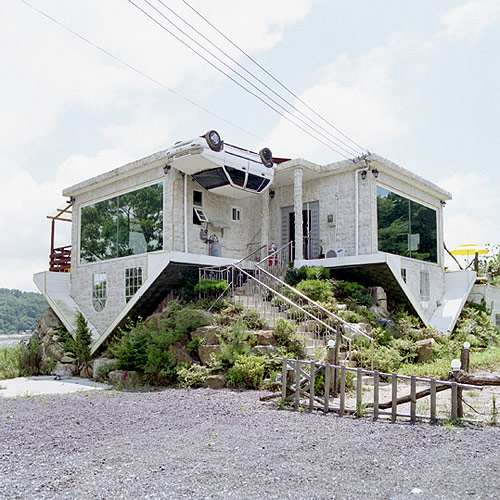
My favorite way to search is definitely Google Reader - Play. It uses the things you like, share, and star in google reader to give you recommendations for other newsfeeds, blogs, and sites that might interest you. Go ahead and take a little time to Play - I think you'll really like it!
Thing #10
Simply stunning! I am loving RSS feeds and am very excited to wake up tomorrow morning and have the news from my favorites sites all coming to me on my new Google Reader page. As far as school and the classroom goes I have subscribed to Free Technology for Teachers, Edutopia, and the New York Times - Education section. I'm looking forward to staying updated on new studies and strategies that are posted on these sites. RSS feeds would be a huge time saver in checking student blogs as well. Though I can't picture my kindergarteners having their own blogs, if the other K-teachers each had a class blog we could use RSS to know when each other made posts that we could share with our students. 
For my personal enjoyment I've subscribed to Mental Floss, the New York Times - Art section, and Whole Living Daily. I hope that this RSS feeding will help me to manage my time better in the morning. :) I also took the challenge and set up a public page. Check out some of my favorite stories @ http://www.google.com/reader/shared/17120252569312786277. I haven't created a profile yet, so my url isn't custom; but once I do I'll post the updated link. You can also find my shared stories & blogs on the right side of this blog!

For my personal enjoyment I've subscribed to Mental Floss, the New York Times - Art section, and Whole Living Daily. I hope that this RSS feeding will help me to manage my time better in the morning. :) I also took the challenge and set up a public page. Check out some of my favorite stories @ http://www.google.com/reader/shared/17120252569312786277. I haven't created a profile yet, so my url isn't custom; but once I do I'll post the updated link. You can also find my shared stories & blogs on the right side of this blog!
Thing #9
 The first online generator I played around with was FanSignGenerator.com. It was very simple to use (all you have to do is type in the text you want) and had a pretty large selection of signs to customize. I created a sign that I could use on a classroom website to display the school lunch menu. I think students would get a kick out of it and it'd be easy to update daily.
The next generator I checked out was ImageChef. I saw some neon signs on the pages of some classmates and I just had to add one to mine! This too was a simple process, just type your message and click preview! The neon sign I made could be used on a class webpage to showcase the Student of the Week. I could also incorporate neon signs into powerpoint presentations, and blogs for my class to give them some pizazz!
Subscribe to:
Posts (Atom)